
SharePoint Tutorial 8 - SharePoint Site Security

Individual users or groups, either SharePoint groups or network domain groups, can be given permissions to a site in SharePoint. In order to give permissions, you must have full control permissions yourself to that site.

The "Site Permissions" link is where you go to view and manage permissions for the site. If you simply want to add a user to a group that you know has access to the site you can click on the group link in the "Groups" section in the left-hand navigation. If you don't see the group just click the "Groups" link in the left-hand navigation and a list of groups will appear to the right.

figure 1
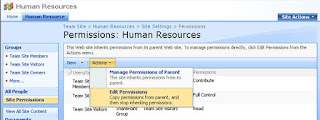

When a site is created the default option is to inherit the security settings from the parent site unless otherwise specified. Notice in figure 1 under the title "Permissions: Human Resources" the description, "This Web site inherits permissions from its parent Web site". If you need to modify the site's permissions click the "Action" menu item and click "Edit Permissions". This will copy the permissions from the parent and the site will stop inheriting. At that point you can edit, add or delete permissions.

Add a User

To add a user click the "New" menu item and click the "Add Users" link. You may also create a new group for the site.


Delete a User

To delete a user or group, select the checkbox next to the user or group. Then click "Actions" and click "Remove User Permissions". This option only becomes available after the site stops inheriting permissions from its parent.


Edit User Permissions

To edit a user or group's permissions simply click the user or group link or select the checkbox next to the user or group, click "Actions" and "Edit User Permissions"

Inherit Permissions

To inherit permissions from the parent site click "Actions" and "Inherit Permissions". Be careful, doing so will remove all the custom permissions on the site.

Comments

  1. Excellent post. I was checking continuously this blog and
    I'm impressed! Very helpful information specially the last part :) I care for such information much. I was seeking this certain info for a long time. Thank you and best of luck.

    Here is my site :: payday loan online no credit check

    ReplyDelete

Post a Comment

Popular posts from this blog

Tab Control in Asp.Net

Scenerio: I need your help in designing tab control in   asp.net .My requirement is I need a tab control in   asp.net (C#) like  for example goto my computer ,right click c drive and select properties.we get tabs like general,security etc....... like that i need to design one tab control(no need of any rightclick) in my web page and the database table columns should come as tabs and inseide the tab data of that particular column should come.   Example:Employee master tab1:Employee name.........his name in the tab tab2:Age.............his age tab3:Address........his address   Solution:   You can do this using a simple div <style type="text/css"> .tabs         {             position: relative;             height: 20px;             margin: 0;   ...

AI and Microsoft: Revolutionizing Efficiency in Nonprofit Organizations

  How AI and Microsoft Enhance Efficiency in Nonprofit Organizations In today’s fast-paced world, nonprofit organizations face unique challenges—limited resources, increasing demands, and the constant need to do more with less. But what if technology could be the game-changer they need? In my latest research paper,  "How AI and Microsoft Enhance Efficiency in Nonprofit Organizations" , I explore how cutting-edge technologies like Artificial Intelligence (AI) and Microsoft’s innovative tools are revolutionizing the way nonprofits operate. From streamlining administrative tasks to enhancing donor engagement and optimizing resource allocation, AI and Microsoft’s solutions are empowering nonprofits to focus on what truly matters—their mission. This paper dives deep into real-world examples, practical applications, and the transformative potential of these technologies. Whether you’re a nonprofit professional, a tech enthusiast, or simply curious about the intersection of technolo...

Social tagging overview in Sharepoint 2010

A tag is a word or phrase that identifies an individual piece of information according to a set of attributes or criteria. Tags make it easy to find and share information about a specific subject or task. Social tagging helps users categorize information in ways that are meaningful to them. Social tagging can improve the quality of search results by filtering against specific tags, and it can also connect individuals who want to share information with other users who have like interests. This article describes the social tagging features in Microsoft SharePoint Server 2010. This article does not describe how to configure social tagging features. It also does not discuss how to implement social tagging features as part of an overall social media strategy for an enterprise. About using social tagging features Social tagging features help users to share information and to retrieve relevant, high-quality content more efficiently. Such sharing encourages collaboration and b...